

Top-level layout
.rundock/. The .claude/ directory, CLAUDE.md and your knowledge files are meant to be shared. .rundock/ is per-user state that lives in the same folder for now, so on a shared workspace you exclude it deliberately: see What syncs and what does not below.
What each path is for
.claude/agents/
One markdown file per agent. The filename without the .md extension is the agent’s slug.
.claude/skills/
One folder per skill. The folder name is the skill’s slug. Inside each folder, a single SKILL.md holds the skill definition.
.claude/settings.local.json
Per-user MCP server permissions and tool overrides for the workspace. Although it sits inside .claude/, this file should not sync across team members: it is per-user state. Add it to your sync tool’s exclusion list (or to .gitignore if you sync via git).
.mcp.json
Workspace-level MCP server configuration. Lists the MCP servers the workspace uses and the connection details. This file syncs across the team on every sync option, git included, so any key written into this file syncs with it. Put credential values in .rundock/mcp-secrets.json instead, keyed by server name: Rundock merges them in only when a Claude Code agent starts. A key already in .mcp.json keeps working until you move it. Read the file before you share the workspace folder.
This file is optional. If your workspace uses no MCP servers, omit it.
CLAUDE.md
Workspace-wide instructions. Rules and context that apply to every agent in the team. House style, file path conventions, naming rules, anything you want every agent to follow.
CLAUDE.md is loaded as part of every agent’s context at spawn time. Keep it focused: long, dense rules in CLAUDE.md slow every conversation down. House style and shared file path conventions belong here. Domain-specific procedures belong in skills.
Knowledge files
Anything else you add to the workspace folder. Brand documents, ICP definitions, voice profiles, pricing pages, reference material your agents need to read. There is no required structure: organise these however suits your work. A common shape:.rundock/
Per-user state, in a hidden directory at the root of the workspace folder. Rundock creates it when it sets up a workspace, and appends .rundock/ to the workspace’s .gitignore at the same time. Holds:
conversations.json: the conversation list.lists.json: how those conversations are grouped.transcripts/: full message transcripts, one JSON file per conversation, named by its id. A conversation that delegates keeps every agent’s part in the same file.runs/: routine run records, one file per run.routine-state.jsonandroutine-slots.json: the scheduling state behind catch-up.state.json: the workspace mode (Notes or Code), whether agents are kept inside the workspace (sandboxSwitch), the folders agents can also change (workingFolders), setup state, and a record of where the workspace was last seen, which Rundock compares against the current path to notice that the folder has moved. The list of workspaces you have opened is kept separately: in your home directory in the desktop app, and beside the server’s own code when Rundock is run from source.search-index.db: the search index.scratch/,child-pids.jsonandstartup.log: working files for running agents.pins.json: the files you have pinned.permissions.json: the “Always allow” answers you have given on permission cards.reviews/: the comments you leave when reviewing a file.mcp-secrets.json: your MCP credential values, keyed by server name, holding only each server’senvandheaders.mcp-runtime.json:.mcp.jsonmerged with those values, written when a Claude Code agent starts. Both hold keys, so keep them out of any sync.extensions.jsonandextensions/: the extensions you have installed, each with the source and version it was pinned to, and its files. Uninstalling its package removes both.extension-state/: each extension’s own preferences for the notes it opens, such as column widths, one folder per extension and one file per note, kept on this machine and never in your notes. Uninstalling the package removes that extension’s folder.receipts/: one receipt per package install or update, listing what arrived, what you decided for each item, the exact commit fetched, and a fingerprint of each file as it was written; a package’s receipts are removed with it when you uninstall it.package-updates/: the author’s versions of anything an update kept as yours, and backups of what it replaced, one folder per package. Kept on this machine only until you clear them from the Packages page. See Install a package.
mcp-secrets.json.
Moving conversation history out of the workspace folder, so that excluding it is no longer necessary, is planned work.
.mcp.json stays where it is.What syncs and what does not
The split as a table.
Everything in the
.rundock/ rows is covered by the .gitignore entry Rundock writes at setup, subject to the two limits in the warning above, and has to be excluded by hand on Dropbox and OneDrive. The guide records no way to exclude it on Google Drive.
The principle: agents and shared knowledge belong to the team, and conversations belong to the individual. Today both sit in the same folder, so the second half of that holds only once you have excluded .rundock/ from your sync tool.
Hidden folders
The.claude/ directory is hidden by default in Finder (Mac) and File Explorer (Windows). This is standard behaviour for any folder name starting with a dot.
Cloud sync services handle hidden folders correctly. They sync the same way as visible folders. If you want to inspect the contents directly:
- Mac: in Finder, press
Cmd + Shift + .to toggle hidden file visibility. - Windows: in File Explorer, View > Show > Hidden items.
Workspace mode
Workspace mode is a workspace-level setting that changes agent behaviour at the platform level. Set per workspace, not per agent.
Mode is set in Settings, under Permissions, where it is the question What are you working on?, or by editing
.rundock/state.json directly:
notes and code. A workspace an earlier release stored as knowledge is read as Notes, and stays as it is until you change the mode.
When a workspace is first opened, Rundock auto-detects the likely mode by looking for package.json, pyproject.toml, Cargo.toml, and similar markers.
The mode affects every agent in the workspace, not just one. There is no per-agent override.
Keep agents inside this workspace
Whether agents can change files outside the workspace folder is its own switch, Keep agents inside this workspace, in Settings, under Permissions, below the mode. It is independent of the mode: switching between Notes and Code never moves it. It uses macOS’s built-in sandbox, and it applies to Claude Code agents.- On: agents can change files in this workspace and the temporary folders they need. Changes elsewhere are blocked.
- Off: agents can change or delete files outside this workspace wherever your account allows. Your approval settings still apply.
Where something other than Rundock decides, the row is read-only, with a lock and a line naming who:
- Rules you wrote yourself. If
.claude/settings.local.jsonholds a sandbox block that Rundock did not write, the row shows its state and says it was set up outside Rundock. Bring your custom rules into Rundock opens a review first: it lists each folder you added by hand, which becomes one of the folders below, and names any rule Rundock cannot represent, which is dropped. Nothing changes until you choose Bring in my rules, and if the file changed after you reviewed it, nothing is brought in and you are asked to review it again. - Another settings file turns it on. Claude Code turns the sandbox on when any of its settings files does. If your organisation’s managed Claude Code settings, the project’s
.claude/settings.jsonor your own~/.claude/settings.jsonturns it on, the row reads On and names which, because Rundock’s switch cannot turn it off while that file turns it on.
.rundock/state.json as sandboxSwitch, and applied through the sandbox block Rundock writes into .claude/settings.local.json.
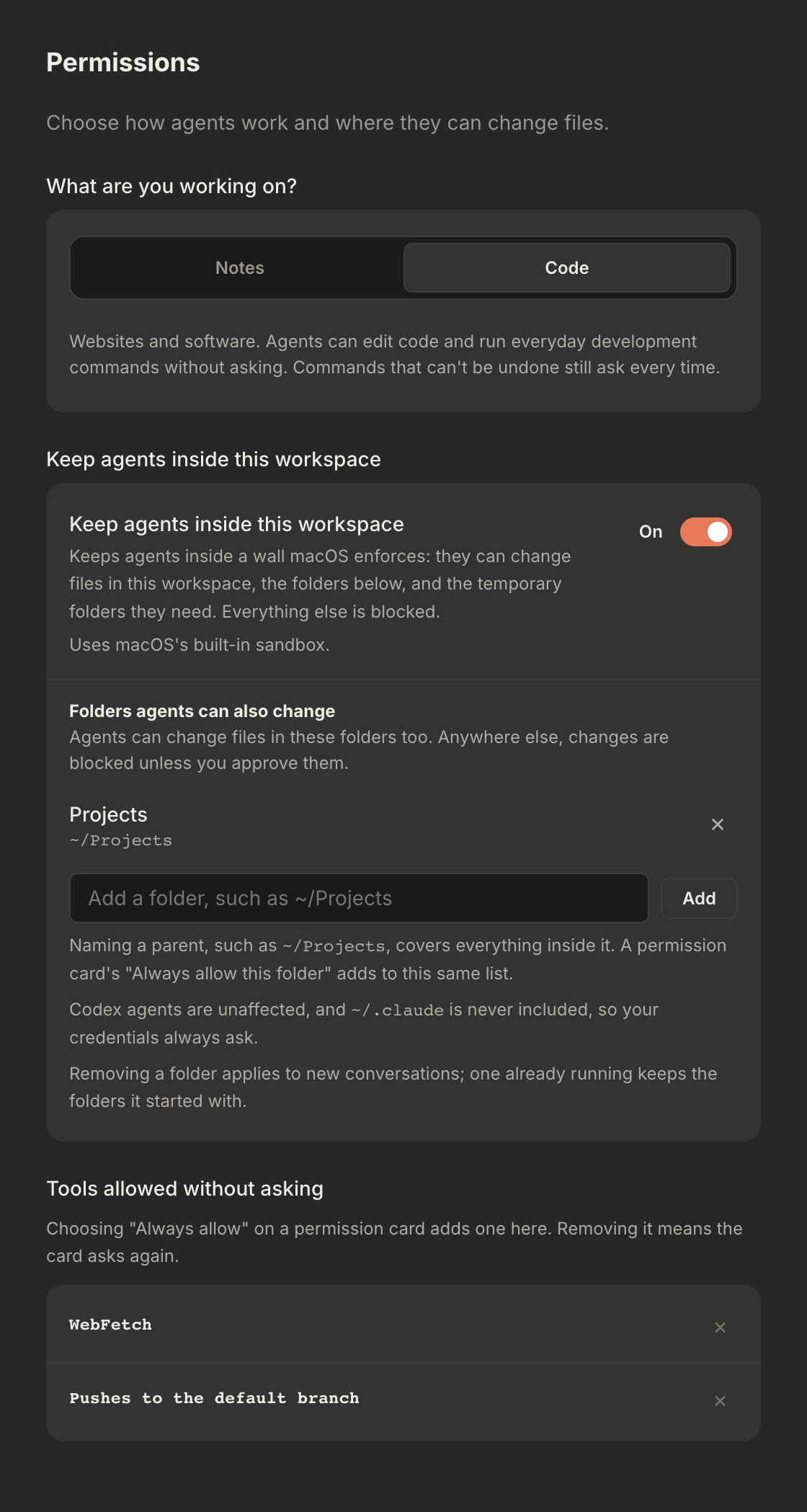
The switch and its working folders in Settings, Permissions.
Folders agents can also change
Under the switch is a list of folders agents can change as well as the workspace, such as a projects folder beside it. Naming a parent, such as~/Projects, covers everything inside it, including folders created later. The list is in force whether the switch is on or off, and the line above it says what it does in each case:
- Switch on: agents can change files in these folders too. Anywhere else, changes are blocked unless you approve them.
- Switch off, Code: agents can change files in these folders without asking. Anywhere else, Rundock asks before a file edit, and before a command it can see reaching outside.
- Switch off, Notes: agents can edit files in these folders without asking. Anywhere else, changes need your approval.
~/.claude is never included, so your credentials always ask. Removing a folder applies to new conversations; one already running keeps the folders it started with.
The list is stored in .rundock/state.json as workingFolders.
Where to next
Workspaces concept
What a workspace is and the sync/no-sync split explained.
Set up a team workspace
Share a workspace across a team using Dropbox, OneDrive, Google Drive, or git.
Agent file format
Every field in an agent file, with a complete worked example.
Skill file format
Every field in a skill file, with a complete worked example.