

What is in a workspace
Inside a workspace folder, the structure looks like this:.claude/agents/: the agent definition files. One markdown file per agent. The filename is the agent’s slug..claude/skills/: the skill definition files. One folder per skill, with aSKILL.mdinside. Skills are reusable instructions an agent can run.CLAUDE.md: the workspace-wide instructions. Rules and context that apply to every agent in the team. House style, file path conventions, any guidance you want every agent to follow.- Knowledge files: anything else you put in the folder. Brand documents, ICP definitions, pricing pages, voice profiles, reference material your agents need to read.
.claude/ folder is hidden by default in Finder and File Explorer. Cloud sync services handle hidden folders correctly: they sync exactly the same way as visible folders. If you want to inspect the contents directly, enable “Show hidden files” in your file browser.
Concept first, syntax second. The full directory layout is in Workspace structure. The pieces above are what you need to understand the model.
What syncs, what stays local
A workspace is split into two parts: the shared team content, and the per-user state. Today both live inside the workspace folder. The workspace folder syncs. Everything inside the folder is meant to be shared across the team. Agents, skills, workspace instructions, and knowledge documents. When the team admin adds a new agent, every team member gets it. When someone updates a skill, the change propagates. The full setup for sharing a workspace across a team is on the team workspace setup guide. Per-user state lives in.rundock/, a hidden directory at the root of the workspace folder. It holds:
- Your conversation list, and full message transcripts, one file per conversation.
- Routine run records, one file per run, and the scheduling state behind them.
- The search index, the workspace mode, and scratch files written while an agent works.
- Your pinned files, and the “Always allow” answers you have given.
- MCP credential values, in
mcp-secrets.json. - Installed extensions and their saved settings, package install receipts, and the backups a package update keeps.
.rundock/ sits inside the workspace folder, it syncs when the workspace folder syncs.
On git, Rundock appends .rundock/ to the workspace’s .gitignore when it sets up the workspace, creating that file if there is none. Two things are worth knowing before you rely on it. It skips the write if the .gitignore already mentions .rundock anywhere, so a file that names something like .rundock-recent-workspaces.json never gets the entry added. And if the write fails, it fails quietly. Open your .gitignore and confirm it contains .rundock/ before you push.
On Dropbox, OneDrive, and Google Drive nothing excludes the directory by default, so you exclude it yourself. The team workspace setup guide gives the steps for each tool, and records no way to exclude it on Google Drive.
.mcp.json is in the same position. It holds your MCP server configuration, it lives in the workspace folder, and it syncs on every option including git. Keep API keys out of it: Rundock reads MCP credential values from .rundock/mcp-secrets.json, a per-user file keyed by server name, and merges them in only when a Claude Code agent starts. A key already written into .mcp.json keeps working, but it travels with the folder until you move it. Because mcp-secrets.json sits in .rundock/, it is one more reason to exclude that directory from any cloud sync.
Two things do stay on your machine wherever your workspace lives. Your Claude or ChatGPT sign-in is held by the runtime’s own command-line tool, in its own configuration outside the workspace folder, and Rundock never reads it. Your recent-workspace list, which the desktop app keeps as a small file in your home directory, records which folders you have opened.
The split as a quick table:
Moving conversation history out of the workspace folder, so that excluding it is no longer necessary, is planned work. Until it lands, treat the exclusion as required setup on any cloud sync tool.
.mcp.json stays where it is: it is shared workspace configuration, so check it holds no keys before you share the folder.Connectors
Connectors are the MCP servers your agents can reach: a calendar, a task manager, a CRM. Settings, Connectors lists every one, gathered from the four places they can be configured: this workspace’s.mcp.json, the Codex equivalent, and the machine-wide settings of each runtime.
Each connector appears once and says:
- Which runtimes reach it: Claude Code, Codex, or both.
- Where it lives: in the workspace, so it travels with the folder, or on this machine only.
- Which credential keys it uses, by name only. Values are never shown.
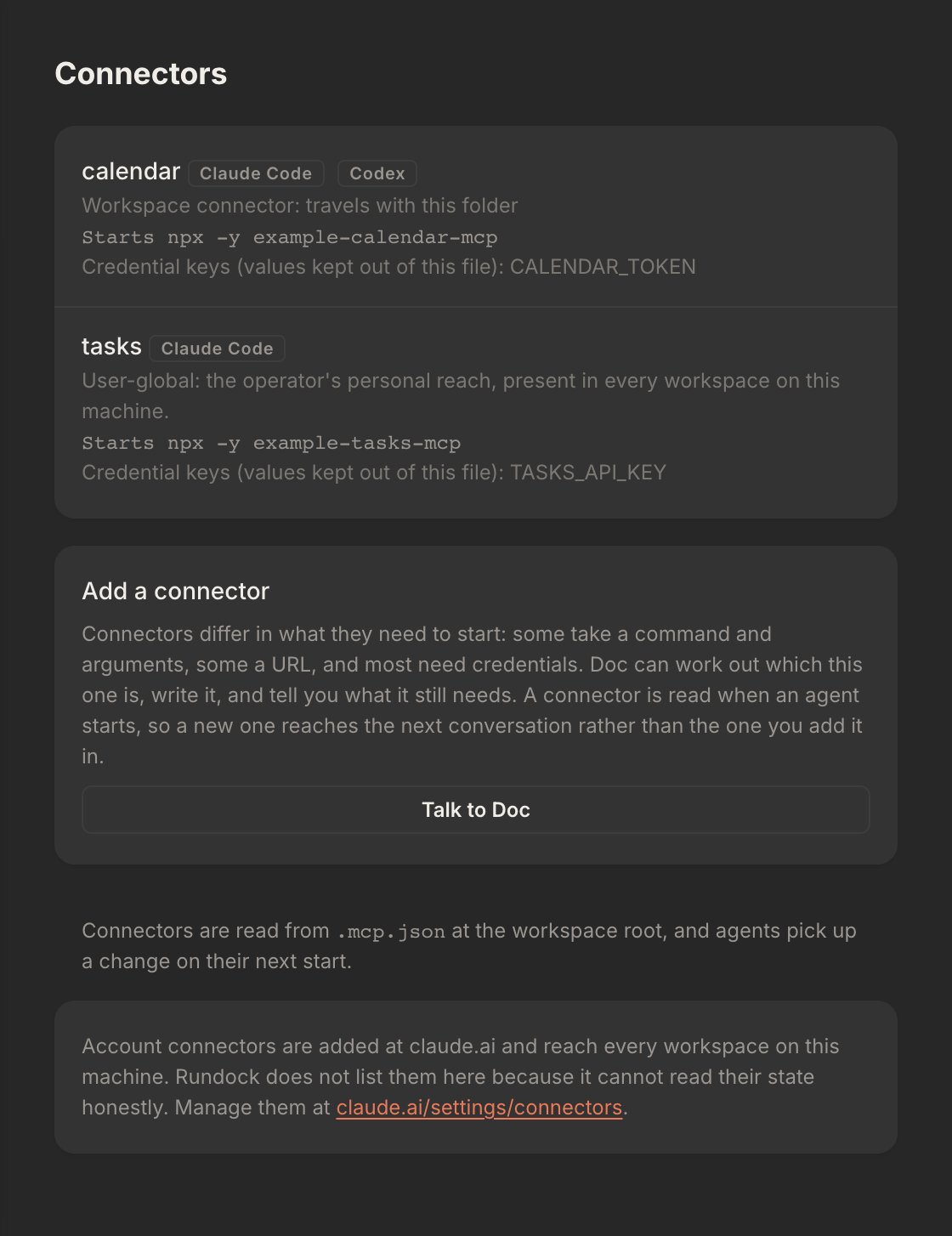
Settings, Connectors: two connectors, one shared by both runtimes and kept with the workspace.
Single-workspace model today
Rundock’s current model is one workspace per team. Every member of the team sees the same agents and skills, with no per-team or per-role permission tiering inside the workspace. This is the right shape for solopreneurs and small teams. As your team grows, you may want finer-grained organisation: separate company-level agents, team-specific agents, and personal agents, with controlled visibility between layers. Finer-grained workspace organisation is on the roadmap. Until it ships, the supported pattern is one synced folder per team. The team workspace setup guide covers it in full.Mid-conversation updates
A specific behaviour worth knowing about: when an agent file changes while you are mid-conversation, whether in Rundock or in another editor, a conversation with the orchestrator picks up the change on your next message. A conversation with any other agent carries on with the version that was loaded when it started. If you are tweaking a specialist and want to see the effect, start a fresh conversation.Where to next
Workspace structure
The canonical directory layout, with what each path is for and what syncs.
Set up a team workspace
Share a workspace across a team using Dropbox, OneDrive, Google Drive, or git.
Agents
What an agent is and how delegation works.
How Rundock works
The mental model that ties workspaces, agents, skills, and routines together.