> ## Documentation Index
> Fetch the complete documentation index at: https://docs.rundock.ai/llms.txt
> Use this file to discover all available pages before exploring further.
# Search
> One palette finds file contents and names, conversation messages, and agent and skill names across the whole workspace.
Select the search field at the top of the window, or press Cmd+K (Ctrl+K on Windows and Linux), to search your whole workspace at once: file contents and names, conversation messages and titles, and agent and skill names. The field expands in place into the results panel. Results are grouped and ranked, with the matching text highlighted.
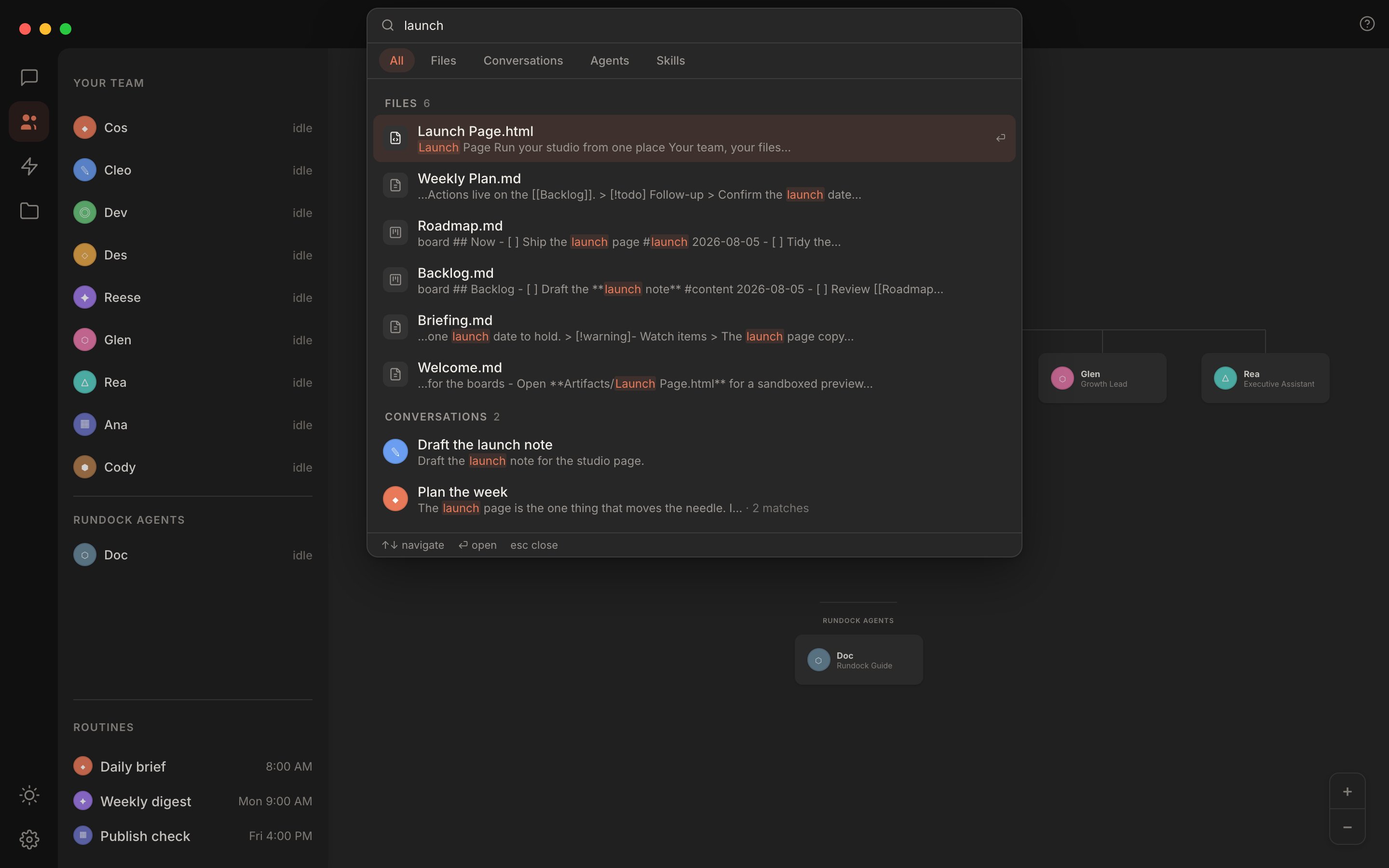 Matching is forgiving. You can type partial words as you go, so "rdmp" finds "Roadmap-2026". An empty query shows your recent items. Every result opens at the right place: pick a conversation and it scrolls to the matched message and highlights it.
File results show their type, and each type carries its own icon, so a report kept as a PDF, a web page and an image are easy to tell apart at a glance. Notes keep their plain name, since almost every file is a note and the extension would never tell two of them apart. Typing a full file name including its type finds it.
Search reaches inside rendered HTML and SVG files (visible text only, never markup or styles) and matches frontmatter property values, not just their names. Cmd+F searches within whatever you have open: a conversation, an editor, a rendered file preview, or the properties panel.
## How it works
The index is a small local file inside your workspace's `.rundock/` folder, rebuilt automatically. It never leaves your machine. Where the index engine is not available, search falls back to a simpler scan rather than failing.
## Where to next
View, edit, and review the files search points you to.
Every message is searchable and opens in place.
Matching is forgiving. You can type partial words as you go, so "rdmp" finds "Roadmap-2026". An empty query shows your recent items. Every result opens at the right place: pick a conversation and it scrolls to the matched message and highlights it.
File results show their type, and each type carries its own icon, so a report kept as a PDF, a web page and an image are easy to tell apart at a glance. Notes keep their plain name, since almost every file is a note and the extension would never tell two of them apart. Typing a full file name including its type finds it.
Search reaches inside rendered HTML and SVG files (visible text only, never markup or styles) and matches frontmatter property values, not just their names. Cmd+F searches within whatever you have open: a conversation, an editor, a rendered file preview, or the properties panel.
## How it works
The index is a small local file inside your workspace's `.rundock/` folder, rebuilt automatically. It never leaves your machine. Where the index engine is not available, search falls back to a simpler scan rather than failing.
## Where to next
View, edit, and review the files search points you to.
Every message is searchable and opens in place.